Masonry
Masonry lays out contents of varying dimensions as blocks of the same width and different height with configurable gaps.
Masonry maintains a list of content blocks with a consistent width but different height. The contents are ordered by row. If a row is already filled with the specified number of columns, the next item starts another row, and it is added to the shortest column in order to optimize the use of space.
Basic masonry
A simple example of a Masonry. Masonry is a container for one or more items. It can receive any element including <div /> and <img />.
import Box from '@mui/material/Box';
import { styled } from '@mui/material/styles';
import Paper from '@mui/material/Paper';
import Masonry from '@mui/lab/Masonry';

const heights = [150, 30, 90, 70, 110, 150, 130, 80, 50, 90, 100, 150, 30, 50, 80];

const Item = styled(Paper)(({ theme }) => ({
  backgroundColor: '#fff',
  ...theme.typography.body2,
  padding: theme.spacing(0.5),
  textAlign: 'center',
  color: (theme.vars || theme).palette.text.secondary,
  ...theme.applyStyles('dark', {
    backgroundColor: '#1A2027',
  }),
}));

export default function BasicMasonry() {
  return (
    <Box sx={{ width: 500, minHeight: 393 }}>
      <Masonry columns={4} spacing={2}>
        {heights.map((height, index) => (
          <Item key={index} sx={{ height }}>
            {index + 1}
          </Item>
        ))}
      </Masonry>
    </Box>
  );
}
Image masonry
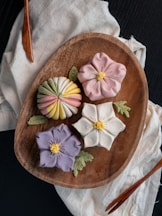
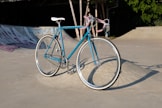
This example demonstrates the use of Masonry for images. Masonry orders its children by row.
If you'd like to order images by column, check out ImageList.















import Box from '@mui/material/Box';
import Paper from '@mui/material/Paper';
import Masonry from '@mui/lab/Masonry';
import { styled } from '@mui/material/styles';

const Label = styled(Paper)(({ theme }) => ({
  backgroundColor: '#fff',
  ...theme.typography.body2,
  padding: theme.spacing(0.5),
  textAlign: 'center',
  color: (theme.vars || theme).palette.text.secondary,
  borderBottomLeftRadius: 0,
  borderBottomRightRadius: 0,
  ...theme.applyStyles('dark', {
    backgroundColor: '#1A2027',
  }),
}));

export default function ImageMasonry() {
  return (
    <Box sx={{ width: 500, minHeight: 829 }}>
      <Masonry columns={3} spacing={2}>
        {itemData.map((item, index) => (
          <div key={index}>
            <Label>{index + 1}</Label>
            <img
              srcSet={`${item.img}?w=162&auto=format&dpr=2 2x`}
              src={`${item.img}?w=162&auto=format`}
              alt={item.title}
              loading="lazy"
              style={{
                borderBottomLeftRadius: 4,
                borderBottomRightRadius: 4,
                display: 'block',
                width: '100%',
              }}
            />
          </div>
        ))}
      </Masonry>
    </Box>
  );
}

const itemData = [
  {
    img: 'https://images.unsplash.com/photo-1518756131217-31eb79b20e8f',
    title: 'Fern',
  },
  {
    img: 'https://images.unsplash.com/photo-1627308595229-7830a5c91f9f',
    title: 'Snacks',
  },
  {
    img: 'https://images.unsplash.com/photo-1597645587822-e99fa5d45d25',
    title: 'Mushrooms',
  },
  {
    img: 'https://images.unsplash.com/photo-1529655683826-aba9b3e77383',
    title: 'Tower',
  },
  {
    img: 'https://images.unsplash.com/photo-1471357674240-e1a485acb3e1',
    title: 'Sea star',
  },
  {
    img: 'https://images.unsplash.com/photo-1558642452-9d2a7deb7f62',
    title: 'Honey',
  },
  {
    img: 'https://images.unsplash.com/photo-1516802273409-68526ee1bdd6',
    title: 'Basketball',
  },
  {
    img: 'https://images.unsplash.com/photo-1551963831-b3b1ca40c98e',
    title: 'Breakfast',
  },
  {
    img: 'https://images.unsplash.com/photo-1627328715728-7bcc1b5db87d',
    title: 'Tree',
  },
  {
    img: 'https://images.unsplash.com/photo-1551782450-a2132b4ba21d',
    title: 'Burger',
  },
  {
    img: 'https://images.unsplash.com/photo-1522770179533-24471fcdba45',
    title: 'Camera',
  },
  {
    img: 'https://images.unsplash.com/photo-1444418776041-9c7e33cc5a9c',
    title: 'Coffee',
  },
  {
    img: 'https://images.unsplash.com/photo-1627000086207-76eabf23aa2e',
    title: 'Camping Car',
  },
  {
    img: 'https://images.unsplash.com/photo-1533827432537-70133748f5c8',
    title: 'Hats',
  },
  {
    img: 'https://images.unsplash.com/photo-1567306301408-9b74779a11af',
    title: 'Tomato basil',
  },
  {
    img: 'https://images.unsplash.com/photo-1627328561499-a3584d4ee4f7',
    title: 'Mountain',
  },
  {
    img: 'https://images.unsplash.com/photo-1589118949245-7d38baf380d6',
    title: 'Bike',
  },
];
Items with variable height
This example demonstrates the use of Masonry for items with variable height.
Items can move to other columns in order to abide by the rule that items are always added to the shortest column and hence optimize the use of space.
import { styled } from '@mui/material/styles';
import ExpandMoreIcon from '@mui/icons-material/ExpandMore';
import Masonry from '@mui/lab/Masonry';
import Accordion from '@mui/material/Accordion';
import AccordionDetails from '@mui/material/AccordionDetails';
import AccordionSummary from '@mui/material/AccordionSummary';
import Typography from '@mui/material/Typography';
import Box from '@mui/material/Box';
import Paper from '@mui/material/Paper';

const heights = [150, 30, 90, 70, 90, 100, 150, 30, 50, 80];

const StyledAccordion = styled(Accordion)(({ theme }) => ({
  backgroundColor: '#fff',
  color: (theme.vars || theme).palette.text.secondary,
  ...theme.applyStyles('dark', {
    backgroundColor: '#1A2027',
  }),
}));

export default function MasonryWithVariableHeightItems() {
  return (
    <Box sx={{ width: 500, minHeight: 377 }}>
      <Masonry columns={3} spacing={2}>
        {heights.map((height, index) => (
          <Paper key={index}>
            <StyledAccordion sx={{ minHeight: height }}>
              <AccordionSummary expandIcon={<ExpandMoreIcon />}>
                <Typography component="span">Accordion {index + 1}</Typography>
              </AccordionSummary>
              <AccordionDetails>Contents</AccordionDetails>
            </StyledAccordion>
          </Paper>
        ))}
      </Masonry>
    </Box>
  );
}
Columns
This example demonstrates the use of the columns to configure the number of columns of a Masonry.
import Box from '@mui/material/Box';
import { styled } from '@mui/material/styles';
import Paper from '@mui/material/Paper';
import Masonry from '@mui/lab/Masonry';

const heights = [150, 30, 90, 70, 90, 100, 150, 30, 50, 80];

const Item = styled(Paper)(({ theme }) => ({
  backgroundColor: '#fff',
  ...theme.typography.body2,
  padding: theme.spacing(0.5),
  textAlign: 'center',
  color: (theme.vars || theme).palette.text.secondary,
  ...theme.applyStyles('dark', {
    backgroundColor: '#1A2027',
  }),
}));

export default function FixedColumns() {
  return (
    <Box sx={{ width: 500, minHeight: 253 }}>
      <Masonry columns={4} spacing={2}>
        {heights.map((height, index) => (
          <Item key={index} sx={{ height }}>
            {index + 1}
          </Item>
        ))}
      </Masonry>
    </Box>
  );
}
columns accepts responsive values:
import Box from '@mui/material/Box';
import { styled } from '@mui/material/styles';
import Paper from '@mui/material/Paper';
import Masonry from '@mui/lab/Masonry';

const heights = [150, 30, 90, 70, 90, 100, 150, 30, 50, 80];

const Item = styled(Paper)(({ theme }) => ({
  backgroundColor: '#fff',
  ...theme.typography.body2,
  padding: theme.spacing(0.5),
  textAlign: 'center',
  color: (theme.vars || theme).palette.text.secondary,
  ...theme.applyStyles('dark', {
    backgroundColor: '#1A2027',
  }),
}));

export default function ResponsiveColumns() {
  return (
    <Box sx={{ width: 500, minHeight: 253 }}>
      <Masonry columns={{ xs: 3, sm: 4 }} spacing={2}>
        {heights.map((height, index) => (
          <Item key={index} sx={{ height }}>
            {index + 1}
          </Item>
        ))}
      </Masonry>
    </Box>
  );
}
Spacing
This example demonstrates the use of the spacing to configure the spacing between items.
It is important to note that the value provided to the spacing prop is multiplied by the theme's spacing field.
import Box from '@mui/material/Box';
import { styled } from '@mui/material/styles';
import Paper from '@mui/material/Paper';
import Masonry from '@mui/lab/Masonry';

const heights = [150, 30, 90, 70, 90, 100, 150, 30, 50, 80];

const Item = styled(Paper)(({ theme }) => ({
  backgroundColor: '#fff',
  ...theme.typography.body2,
  padding: theme.spacing(0.5),
  textAlign: 'center',
  color: (theme.vars || theme).palette.text.secondary,
  ...theme.applyStyles('dark', {
    backgroundColor: '#1A2027',
  }),
}));

export default function FixedSpacing() {
  return (
    <Box sx={{ width: 500, minHeight: 377 }}>
      <Masonry columns={3} spacing={3}>
        {heights.map((height, index) => (
          <Item key={index} sx={{ height }}>
            {index + 1}
          </Item>
        ))}
      </Masonry>
    </Box>
  );
}
spacing accepts responsive values:
import Box from '@mui/material/Box';
import { styled } from '@mui/material/styles';
import Paper from '@mui/material/Paper';
import Masonry from '@mui/lab/Masonry';

const heights = [150, 30, 90, 70, 90, 100, 150, 30, 50, 80];

const Item = styled(Paper)(({ theme }) => ({
  backgroundColor: '#fff',
  ...theme.typography.body2,
  padding: theme.spacing(0.5),
  textAlign: 'center',
  color: (theme.vars || theme).palette.text.secondary,
  ...theme.applyStyles('dark', {
    backgroundColor: '#1A2027',
  }),
}));

export default function ResponsiveSpacing() {
  return (
    <Box sx={{ width: 500, minHeight: 377 }}>
      <Masonry columns={3} spacing={{ xs: 1, sm: 2, md: 3 }}>
        {heights.map((height, index) => (
          <Item key={index} sx={{ height }}>
            {index + 1}
          </Item>
        ))}
      </Masonry>
    </Box>
  );
}
Sequential
This example demonstrates the use of the sequential to configure the sequential order.
With sequential enabled, items are added in order from left to right rather than adding to the shortest column.
import Box from '@mui/material/Box';
import { styled } from '@mui/material/styles';
import Paper from '@mui/material/Paper';
import Masonry from '@mui/lab/Masonry';

const heights = [150, 30, 90, 70, 110, 150, 130, 80, 50, 90, 100, 150, 30, 50, 80];

const Item = styled(Paper)(({ theme }) => ({
  backgroundColor: '#fff',
  ...theme.typography.body2,
  padding: theme.spacing(0.5),
  textAlign: 'center',
  color: (theme.vars || theme).palette.text.secondary,
  ...theme.applyStyles('dark', {
    backgroundColor: '#1A2027',
  }),
}));

export default function Sequential() {
  return (
    <Box sx={{ width: 500, minHeight: 393 }}>
      <Masonry
        columns={4}
        spacing={2}
        defaultHeight={450}
        defaultColumns={4}
        defaultSpacing={1}
        sequential
      >
        {heights.map((height, index) => (
          <Item key={index} sx={{ height }}>
            {index + 1}
          </Item>
        ))}
      </Masonry>
    </Box>
  );
}
Server-side rendering
This example demonstrates the use of the defaultHeight, defaultColumns and defaultSpacing, which are used to
support server-side rendering.
import Box from '@mui/material/Box';
import { styled } from '@mui/material/styles';
import Paper from '@mui/material/Paper';
import Masonry from '@mui/lab/Masonry';

const heights = [150, 30, 90, 70, 110, 150, 130, 80, 50, 90, 100, 150, 30, 50, 80];

const Item = styled(Paper)(({ theme }) => ({
  backgroundColor: '#fff',
  ...theme.typography.body2,
  padding: theme.spacing(0.5),
  textAlign: 'center',
  color: (theme.vars || theme).palette.text.secondary,
  ...theme.applyStyles('dark', {
    backgroundColor: '#1A2027',
  }),
}));

export default function SSRMasonry() {
  return (
    <Box sx={{ width: 500, minHeight: 393 }}>
      <Masonry
        columns={4}
        spacing={2}
        defaultHeight={450}
        defaultColumns={4}
        defaultSpacing={1}
      >
        {heights.map((height, index) => (
          <Item key={index} sx={{ height }}>
            {index + 1}
          </Item>
        ))}
      </Masonry>
    </Box>
  );
}
API
See the documentation below for a complete reference to all of the props and classes available to the components mentioned here.